Wi-Fi Connected, No Internet: Isolate the Broken Link
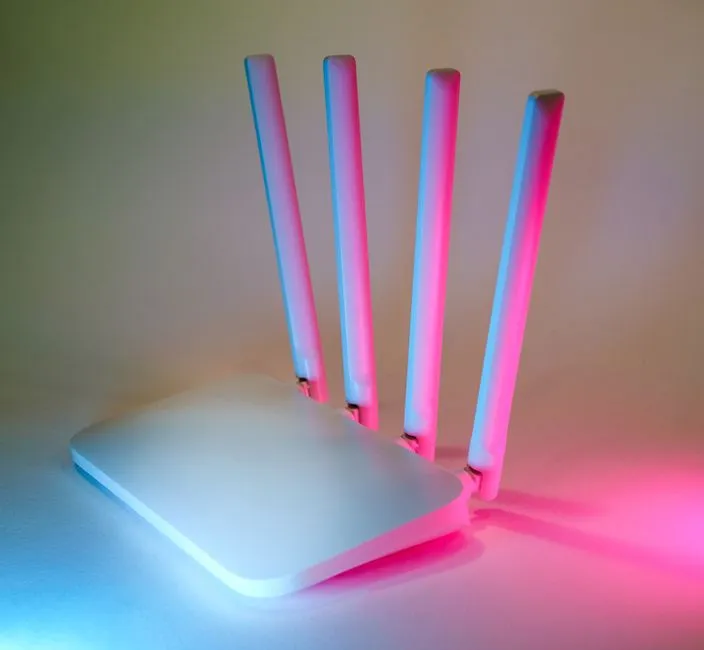
- Prove which link is broken before resetting one
- Build a two-by-two diagnosis
- Test one known site and one unrelated app
- Check for a captive portal
- Restart the failing device
- If all devices fail, check service and equipment
- If one device fails, forget and rejoin carefully
- Pause VPN, proxy, private DNS, and filters for one comparison
- Return IP and DNS to intended settings
- Update the device and network software safely
- Use network reset only near the end
- Escalate with evidence
Prove which link is broken before resetting one
A Wi-Fi icon proves that a device joined a local wireless network; it does not prove the router can reach the internet, DNS can resolve names, or a captive portal has authorised access. Test another website and app, then test a second device on the same network. If every device fails, investigate the modem, router, and provider. If one device fails, keep the early fixes on that device.
Do not press a recessed router reset button. A power restart and a factory reset are different operations, and only one of them may erase the network configuration with the tiny enthusiasm of a trapdoor.
Build a two-by-two diagnosis
Use this table before changing settings:
| Test | Result | Likely scope |
|---|---|---|
| Several sites and apps fail on one device only | Other devices work | device, VPN, DNS, app, or saved network |
| Every device fails on the same Wi-Fi | Mobile data or another network works | router, modem, provider, or upstream service |
| One site or app fails everywhere | General browsing works | that service, account, filter, or app |
| Public Wi-Fi connects but nothing loads | Other networks work | captive portal, policy, or public network |
Record the start time, network name, affected devices, and any change immediately beforehand. This is more useful to support than “the internet is broken,” though emotionally both statements may feel complete.
Google’s Android connection guide similarly recommends restart, comparison between Wi-Fi and mobile data, and testing the router. Microsoft’s current Windows Wi-Fi guide begins with connection status, Airplane mode, forgetting and reconnecting, and router restart before driver-level actions.
Test one known site and one unrelated app
Open a simple website you do not normally cache and one app from a different provider. If only one fails, check that service’s official status and sign-in. If names fail but a network diagnostic reaches an IP address, DNS may be involved, but do not infer that from one spinning page alone.
Disable and re-enable Wi-Fi on the device. Confirm Airplane mode is off. Move closer to the access point and check signal strength. A strong Wi-Fi icon shows radio strength to the access point, not provider health.
If mobile data works, account for charges before using it for large updates or backups. On a laptop, a known-good Ethernet comparison can help if the device and router support it.
Check for a captive portal
Hotels, cafés, airports, schools, and guest networks may require a browser sign-in, acceptance page, room code, or updated terms. Disconnect any VPN temporarily if authorised, open a normal non-sensitive browser page, and look for the network’s sign-in prompt.
Do not enter sensitive credentials into a portal whose network and address you cannot verify. Ask staff for the exact network name and official process. Public Wi-Fi can be monitored or impersonated; use encrypted sites and follow organisational security policy.
If the portal previously worked, forget and rejoin only after confirming the password or access method. Some networks limit devices or sessions and require the operator to clear an old registration.
Restart the failing device
Use a normal restart, then reconnect and test the same site and app. Restarting reloads the network stack and clears temporary state without deleting saved networks.
If a call, upload, update, or file transfer is active, save work first. On Android, Google notes that its Internet reset control can end calls. Device menus vary; use the normal supported restart rather than a button combination whose second career is factory reset.
If all devices fail, check service and equipment
Look at the provider’s official outage page using mobile data or another connection. Check the modem or gateway lights against its manual; colours and patterns are model-specific, so do not accept a random blog’s claim that one red blink means a particular line fault.
Inspect cables without opening equipment. Stop if a power supply is damaged, hot, wet, sparking, or smells burnt. Do not handle provider lines or internal mains components.
Restart the modem/router only according to the provider or manufacturer instructions. A common sequence for separate units is:
- Save work because every connected device will lose service.
- Disconnect router and modem power as the manual permits.
- Wait the instructed interval.
- Power the modem first and wait for its normal ready state.
- Power the router and wait for its normal ready state.
- Test one wired or wireless device.
Exact timing and order vary for fibre terminals, mesh systems, gateways, battery-backed equipment, and managed networks. Follow the model instructions.
Do not confuse restart with factory reset
The recessed Reset control can erase the Wi-Fi name, password, provider settings, parental controls, port rules, and mesh configuration. Use it only when the provider or exact manual calls for a factory reset and you have the authority, backup configuration, account access, and setup instructions.
If all devices still fail after the supported restart, contact the provider with start time, equipment model, status lights, outage check, and tests performed.
If one device fails, forget and rejoin carefully
Forgetting a network deletes its saved password and network-specific configuration from that device. It does not reset the router or affect other devices.
Before forgetting, confirm:
- the exact network name;
- the current password;
- certificate or username requirements;
- captive-portal or device-registration steps;
- any static IP, proxy, or DNS settings that must be preserved.
On current Windows 11, the common path is Settings > Network & internet > Wi-Fi > Manage known networks, then choose the network and Forget. On many Android versions, use Settings > Network & internet > Internet, select the saved network, and choose Forget; manufacturers vary. On iPhone, use the network’s information button in Wi-Fi settings and Forget This Network, subject to current iOS labels.
Reconnect as a new connection and test. A typo in the password is not a DNS failure, no matter how technical the sigh.
Pause VPN, proxy, private DNS, and filters for one comparison
A VPN, proxy, custom DNS provider, firewall, antivirus web filter, parental control, or workplace profile may block traffic or fail closed. If you own the device and are authorised, pause the relevant service briefly, test one safe site, then re-enable it.
Do not remove a workplace, school, child-safety, or security profile without the administrator. Record the original setting. If connectivity returns only with protection off, update or repair that product through its official support rather than leaving the device exposed.
On many Android versions, Private DNS appears under Settings > Network & internet > Private DNS, though location varies. Windows proxy and VPN settings commonly live under Settings > Network & internet. Apple places VPN and device-management information in Settings paths that vary by iOS version and configuration.
Return IP and DNS to intended settings
Home devices normally receive IP, gateway, and DNS settings automatically from the router, unless a network administrator specifies otherwise. A stale manual address, proxy, or custom DNS entry can break access.
Do not replace settings with public DNS numbers merely because they are famous. First record the existing configuration and confirm the network expects automatic addressing. On managed or static-address networks, contact the administrator.
If the device reports a self-assigned address, duplicate address, or missing gateway, share that exact message with support. Do not invent meaning for an error code or copy a gateway from another household.
Update the device and network software safely
When another connection is available, install supported operating-system updates through the official mechanism. For Windows, check Settings > Windows Update. For Android and iPhone, paths vary by release and maker.
Router firmware updates must come from the provider or manufacturer and match the exact model and hardware revision. Keep power stable and do not interrupt the update. Back up configuration where supported.
If Wi-Fi broke immediately after an update, record the version and time. On Windows, use the PC maker’s network driver first; save the current and replacement installers before rollback or uninstall. The Bluetooth guide explains the same driver-safety boundary for a neighbouring radio.
Use network reset only near the end
Destructive configuration step: a network-settings reset can erase saved Wi-Fi networks and passwords and may reset cellular, VPN, DNS, proxy, or Bluetooth-related settings depending on platform and version. It should not be confused with a factory reset, but it is not consequence-free.
Before using it:
- back up important data;
- record Wi-Fi passwords and static settings;
- preserve VPN, eSIM, carrier, certificate, and workplace instructions;
- confirm account and administrator access;
- read the exact confirmation screen and official device guide.
Then use only the platform’s supported reset path. On current Windows 11, Network reset is commonly under Settings > Network & internet > Advanced network settings. Android and iPhone paths differ by maker and version.
After reset, restart, reconnect one network, and test before restoring custom settings. Do not perform a full device factory reset for one Wi-Fi symptom unless official support has exhausted narrower causes and you have a verified restoration plan.
Escalate with evidence
Contact the correct party:
- Provider: all home devices fail; outage or modem state points upstream.
- Router maker/provider: wired internet works but Wi-Fi fails across devices.
- Device maker: one device fails on multiple known-good networks.
- Administrator: managed network, certificate, proxy, or policy issue.
- App/service support: general internet works but one service fails.
Provide timestamps, devices, networks tested, wired/mobile comparison, status lights, error wording, OS version, and changes tried. Hide public IPs, account numbers, network passwords, and diagnostic logs containing personal data.
If the issue presents as an app crash, use the Android app sequence rather than repeatedly restarting the router. If an iPhone cannot update because local capacity is exhausted, follow the iPhone storage cleanup. Connected-without-internet is a chain problem; the fastest repair comes from finding the broken link, not punishing every link equally.